Version Control with GIT
What is GIT and what can it do?
Git is a free, distributed version control system for software projects. It allows multiple developers to work on a project simultaneously, regardless of their location.
Version control makes it easy to make changes to a project, to record and track those changes, and to access older versions of the project at a later time. Git is platform-independent and can therefore be used in almost any environment.
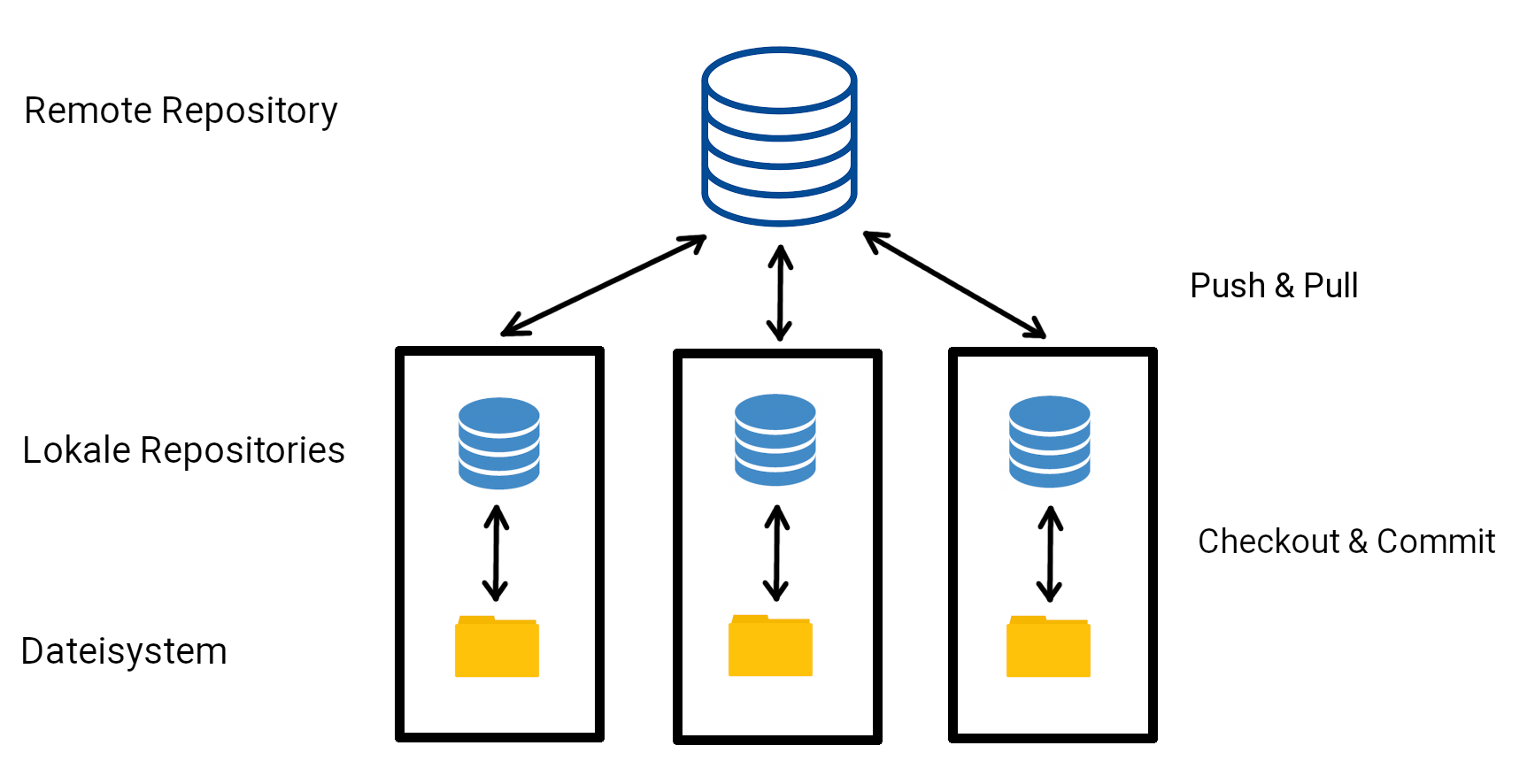
The following figure illustrates how three developers could work on a shared software project. The source code is stored centrally in a remote repository. This is synchronized with local repositories on the computers of the individual developers. Each local repository is in turn connected to a folder in the file system where the actual project files are located:
In this section, we want to take a closer look at how this workflow works. To do this, we first install Git on our computer:
conda install -c conda-forge gitUnder Linux, Git can also be installed via the package manager, as Git is not only useful for Python projects. On Ubuntu, for example:
sudo apt-get install gitFor other Linux distributions, the respective package manager must be used. Windows users can download Git from the official website: https://
First steps
Synchronization with the local repository
We want to familiarize ourselves with the basic steps of working with Git. The most important commands we will learn in this chapter are:
| Command | Meaning |
|---|---|
git init | Initialize a local repository |
git add [files] | Add files to version control or stage them for the next commit |
git commit -m "[message]" | Commit staged changes to the local repository |
git log | Show the commit history |
git status | Show status report |
We first create a new folder for our programming project and initialize a local Git repository with
mkdir my_project
cd my_project
git init
Empty Git-Repository in /home/user/Documents/my_project/.git/ initializedThis command creates a hidden folder called .git. In this folder, Git stores all information about the version history of the project. In general, we do not need to open this folder directly.
We can now start writing our program code. Using an editor of our choice, we create the file calender.py and fill it with the following content:
class appointment:
    pass

class calender:
    pass
We add this to version control and save it in the local repository:
git add calender.py
git commit -m "Created file for empty calender and appointment class"
[master (Root-Commit) ce7d6d2] Created empty calender and appointment class
1 file changed, 6 insertions(+)
create mode 100644 calender.pyWe can now extend our program, for example the appointment class:
class appointment:

    def __init__(self, date, title):
        self.date = date
        self.title = title
    def __str__(self):
        return self.date + ": " + self.title
With the following command, we can check whether we are still synchronized with our local repository:
git statusOn branch master
Changes not staged for commit:
(use "git add <file>..." to stage changes for commit)
(use "git restore <file>..." to discard changes in working directory)
modified: calender.py
no changes added to commit (use "git add" and/or "git commit -a")We now want to upload the changes to the file calender.py to the local repository:
git add calender.py
git commit -m "Implemented constructor and string method for appointment class"
In the next step, we extend our calender class.
class calender:

    def __init__(self, owner):
        self.owner = owner
        self.appointments = []

    def add_appointment(self, appointment):
        self.appointments.append(appointment)
We then save the changes again in the local repository. We could proceed as before,
git add calender.py
git commit -m "Implemented constructor and add_appointment method for calender class"
Alternatively — and this is often how it is done in practice — we can create the commit with just one line:
git commit -am "Implemented constructor and add_appointment method for calender class"The git add line was omitted here; instead, the -a parameter was added to git commit. The -a option ensures that all files already known to Git (i.e., files that have previously been added with git add) are automatically staged for the commit. This allows us to skip the additional git add command in many cases.
We have now created 3 commits. We obtain a history with
git logcommit a95560371b9984f57fff4dcbd028bb757a0918cc (HEAD -> master)
Author: Max Winkler <max.winkler@mathematik.tu-chemnitz.de>
Date: Thu Mar 17 16:04:37 2022 +0100
Implemented constructor and add_appointment method for calender class
commit ed29a89b272ab66e95cb7d014c90fadccb9cacc1
Author: Max Winkler <max.winkler@mathematik.tu-chemnitz.de>
Date: Thu Mar 17 16:00:40 2022 +0100
Implemented constructor and string method for appointment class
commit ce7d6d246e3b0042b70f2b0104ef45139f9de381
Author: Max Winkler <max.winkler@mathematik.tu-chemnitz.de>
Date: Thu Mar 17 15:50:38 2022 +0100
Created empty calender classHere we find our commit messages again and can also see when each commit was created. In addition, each commit is assigned a unique identifier (the cryptic code after the word “commit”).
Connecting to a Remote Repository
We now want to connect our local repository to a remote repository. This is particularly useful if the remote repository is accessible to other developers via the internet or an intranet.
There are several free providers for Git repositories:
TU Chemnitz - The GitLab of TU Chemnitz
GitHub - Public repositories
Bitbucket - Public repositories
We can register with one of these providers and create a new repository there.
The most important commands for synchronizing with a remote repository are:
| Command | Meaning |
|---|---|
git pull | Download changes from the remote repository |
git push | Upload changes from the local repository to the remote repository |
git remote [...] | Configure connection to a remote repository |
git clone <url> | Clone a remote repository into a local one |
Creating an SSH key:
Before we can work with a remote repository, we need to create an SSH key. This is used for authentication when accessing the remote repository.
First, we check whether a public SSH key already exists. To do this, we enter the following in the terminal:
cat ~/.ssh/id_rsa.pubIf the file id_rsa.pub does not exist in the directory $HOME/.ssh, we first need to generate a new key pair:
ssh-keygen -t rsa -b 4096After following the instructions of the program, two new files should exist:
~/.ssh/id_rsa      → private key (secret!)
~/.ssh/id_rsa.pub  → public key (can be shared)
The private key must never be shared. The public key, on the other hand, is required to authenticate ourselves with GitLab.
We can display the public key using:
cat ~/.ssh/id_rsa.puband then copy it to the clipboard.
On the GitLab website, click your avatar in the top right corner, select Preferences, and navigate in the left sidebar to the SSH Keys section. By clicking Add new key, a form appears where we can paste our public key. We also assign a title (e.g. Max Laptop) and can optionally set an expiration date.
This process must be carried out for every device from which we want to access the remote repository.
Connecting to the remote repository:
When we first try to “push” our code, we will see a warning:
git pushfatal: No configured push destination.
Either specify the URL from the command line or configure a remote repository using
git remote add <name> <url>
and then push using the remote name
git push <name>This is not surprising, since we have not yet told Git where our remote repository is located. How to do this is already explained in the error message.
We can find the URL of our remote repository, for example, in the GitLab web interface by clicking the Clone button:
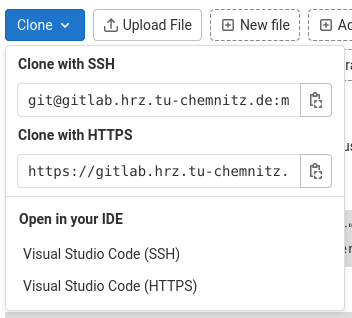
In this case, we usually use the SSH URL. Using it, we can link our local repository to the remote repository as follows:
git remote add Gitlab git@gitlab.hrz.tu-chemnitz.de:maxwin--tu-chemnitz.de/python-lecture.git
git push Gitlab
Enumerating objects: 9, done.
Counting objects: 100% (9/9), done.
Delta compression using up to 4 threads.
Compressing objects: 100% (6/6), done.
Writing objects: 100% (9/9), 983 Bytes | 327.00 KiB/s, done.
Total 9 (delta 1), reused 0 (delta 0), pack-reused 0
To gitlab.hrz.tu-chemnitz.de:maxwin--tu-chemnitz.de/python-lecture.git
* [new branch] master -> masterOn the GitLab website of our project, the file calender.py should now also appear.
Note that the web interface only shows the contents of the remote repository. Changes that exist only in our local repository and have not yet been transferred using git push are not visible there.
Once the remote repository has been set up, other developers can download it and start working on the project. For this, the following command is used:
git clone git@gitlab.hrz.tu-chemnitz.de:maxwin--tu-chemnitz.de/python-lecture.gitThis command creates a new local repository and simultaneously downloads all files as well as the entire version history of the project.
Afterwards, the developer can modify files, commit the changes to their local repository, and use
git pushto transfer them to the remote repository. Another developer can then retrieve these changes again with
git pullinto their local repository.
With the command
git remote -vwe can display at any time which remote repositories the local repository is connected to. This shows both the address for downloading (fetch) and uploading (push) data.
Working in a Team
Merges and Merge Conflicts
We have already learned how to synchronize the data of our local repository with the remote repository (push and pull). Other developers can also clone this repository (clone) and help us with the programming.
But what actually happens when multiple users make changes at the same time?
We test this by having our repository cloned by two programmers — Programmer A and Programmer B. They now work independently on the calender and appointment classes respectively:
Programmer A
from datetime import datetime

class appointment:

    def __init__(self, date, title):
        try:
            self.date = datetime.strptime(date, '%d.%m.%y %H:%M:%S')
        except:
            print("Error:", date, "is not a valid date format.")

        self.title = title

    def __str__(self):
        return str(self.date) + ": " + self.title

    def __lt__(self, other):
        return self.date <= self.other
Programmer B
class calender:

    def __init__(self, owner):
        self.owner = owner
        self.appointments = []

    def add_appointment(self, appointment):
        self.appointments.append(appointment)

    def __str__(self):

        res = "Calender of "+self.owner+":\n"

        if len(res) == 0:
            print("<no appointments>")
        else:
            for appointment in self.appointments:
                res += str(appointment) + "\n"
        return res
Both programmers can synchronize their code with their local repositories at any time using git add and git commit. However, things become critical when using git push.
The programmer who first uploads their changes to the remote repository (git push) can do so without conflicts. The second programmer, however, receives the following error message:
git pushTo gitlab.hrz.tu-chemnitz.de:maxwin--tu-chemnitz.de/python-lecture.git
! [rejected] master -> master (fetch first)
error: failed to push some refs to 'git@gitlab.hrz.tu-chemnitz.de:maxwin--tu-chemnitz.de/python-lecture.git'
hint: Updates were rejected because the remote contains work that you do
hint: not have locally. This is usually caused by another repository pushing
hint: to the same ref. You may want to first integrate the remote changes
hint: (e.g., 'git pull ...') before pushing again.
hint: See the 'Note about fast-forwards' in 'git push --help' for details.The changes made by Programmer A have therefore caused a conflict with Programmer B’s local data. Programmer B must first download these changes (git pull) and resolve any conflicts that may have arisen in the source code before they can transfer their own changes to the remote repository.
If Programmer B now enters
git pullGit will automatically try to merge the changes from both programmers. This merge is itself a commit. Therefore, a commit message is requested. A text editor opens with the following content:
Merge branch 'master' of gitlab.hrz.tu-chemnitz.de:maxwin--tu-chemnitz.de/python-lectureThis message can simply be accepted, and the editor can then be saved and closed (for example in Vim with :wq).
In the best case, a success message then appears in the console:
remote: Enumerating objects: 5, done.
remote: Counting objects: 100% (5/5), done.
remote: Compressing objects: 100% (2/2), done.
remote: Total 3 (delta 1), reused 0 (delta 0), pack-reused 0
Unpacking objects: 100% (3/3), done.
From gitlab.hrz.tu-chemnitz.de:maxwin--tu-chemnitz.de/python-lecture
   a955603..5872b6e  master     -> origin/master
Auto-merging calender.py
Merge made by the 'recursive' strategy.
 calender.py | 11 ++++++++++-
 1 file changed, 10 insertions(+), 1 deletion(-)
This confirms that the merge was successful. If we now open the file calender.py, we can see that the changes from both programmers are included.
Programmer B can then transfer the latest version back to the remote repository using
git pushWe now check what actually happened using git log, along with some additional options:
git log --oneline --graph* 224c7c9 (HEAD -> master, origin/master, origin/HEAD)
Merge branch 'master' of gitlab.hrz.tu-chemnitz.de:maxwin--tu-chemnitz.de/python-lecture
|\
| * 5872b6e Modified appointment class
* | 209c906 Modified calender class
|/
* a955603 Implemented constructor and add_appointment method for calender class
* ed29a89 Implemented constructor and string method for appointment class
* ce7d6d2 Created empty calender classOn the left, we can see a tree structure. After the third commit, the history branches into two branches, one for each programmer, who were no longer synchronized at that point. During git pull, Programmer B merged these two branches back together.
This was the simple case. But what happens if the automatic merge fails? For example, if both programmers modify the same line.
Let’s assume that both programmers add a comment to the appointment class:
Programmer A
# Class that stores date and title of an appointment
class appointment:
Programmer B
# Class represents an appointment of the calender owner
class appointment:
Both commit and push their changes. For the second programmer, the git push fails, and they must first download the changes using git pull:
git pullremote: Enumerating objects: 5, done.
remote: Counting objects: 100% (5/5), done.
remote: Compressing objects: 100% (2/2), done.
remote: Total 3 (delta 1), reused 0 (delta 0), pack-reused 0
Unpacking objects: 100% (3/3), done.
From gitlab.hrz.tu-chemnitz.de:maxwin--tu-chemnitz.de/python-lecture
224c7c9..c7bebfa master -> origin/master
Auto-merging calender.py
CONFLICT (content): Merge conflict in calender.py
Automatic merge failed; fix conflicts and then commit the result.The merge has clearly failed. Git cannot decide which version is correct. Therefore, Programmer B must open the file calender.py in an editor and will find the following markers:
<<<<<<< HEAD
# Class represents an appointment of the calender owner
=======
# Class that stores date and title of an appointment
>>>>>>> c7bebfacf5aa664e1f3ed705794856828970b787
class appointment:
These markers indicate the conflict area. Programmer B must now resolve the conflict manually, i.e., decide which version should be kept. After that, the conflict markers must be removed.
Then the changes can be committed with
git commit -am "Solved merge conflict"
git push
and subsequently pushed to the remote repository.
Programmer A will receive these changes the next time they run git pull.
Working with Branches
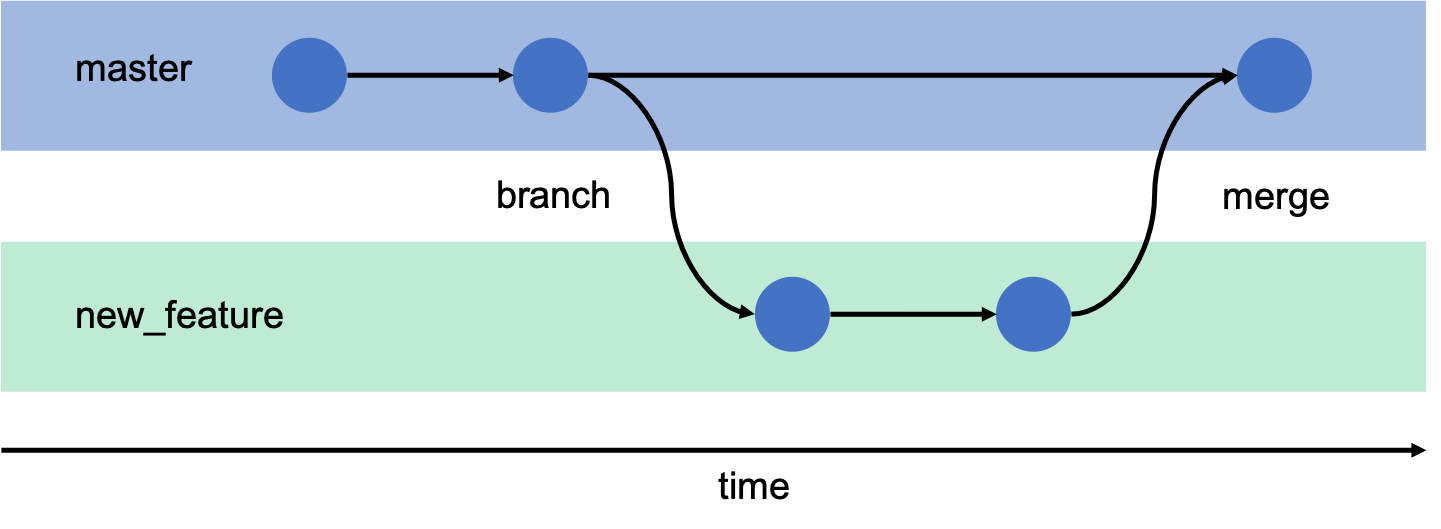
To reduce conflicts between multiple developers, it is useful to create separate development branches for new features and work specifically on them.
Once a feature is fully implemented, it can then be integrated into the main branch (usually main, formerly often master).
We learn the following commands:
| Command | Meaning |
|---|---|
git branch ... | Create/delete/manage branches |
git checkout <branch> | Switch to a branch |
git merge <branch> | Merge a branch into the current one |
Creating a new branch
We now imagine that Programmer A and Programmer B continue working separately. While Programmer A continues working on the master branch and perhaps writes some test scripts for using our calender class, Programmer B works on new features for our calendar. To avoid disturbing Programmer A’s work, Programmer B creates a new branch:
git branch calender_features
git checkout calender_features
Switched to branch 'calender_features'Alternatively, a new branch can also be created and switched to directly with
git checkout -b calender_featuresWe can display the available branches again using
git branch master
* calender_featuresThe asterisk marks the branch we are currently on.
We can now extend the calender class. For example, we add the following method:
    def remove_old_appointments(self):
        today = datetime.today()
        upcoming_appointments = []

        for appointment in self.appointments:
            if appointment.date > today:
                upcoming_appointments.append(appointment)

        self.appointments = upcoming_appointments
Let’s take another look at the output of git status:
git statusOn branch calender_features
Changes not staged for commit:
(use "git add <file>..." to update what will be committed)
(use "git checkout -- <file>..." to discard changes in working directory)
modified: calender.py
no changes added to commit (use "git add" and/or "git commit -a")The first line shows that we are indeed on the calender_features branch.
We can now commit and then try to push:
git commit -am "Implemented method to remove old appointments"
git push
fatal: The current branch calender_features has no upstream branch.
To push the current branch and set the remote as upstream, use
git push --set-upstream origin calender_features
The reason is that the new branch only exists locally so far. The remote repository does not yet know this branch. When pushing for the first time, we therefore need to specify that a new remote branch should be created.
We do this with:
git push --set-upstream origin calender_featuresCounting objects: 3, done.
Delta compression using up to 8 threads.
Compressing objects: 100% (2/2), done.
Writing objects: 100% (3/3), 484 bytes | 161.00 KiB/s, done.
Total 3 (delta 1), reused 0 (delta 0)
remote:
remote: To create a merge request for calender_features, visit:
remote: https://gitlab.hrz.tu-chemnitz.de/maxwin--tu-chemnitz.de/python-lecture/-/merge_requests/new?merge_request%5Bsource_branch%5D=calender_features
remote:
To gitlab.hrz.tu-chemnitz.de:maxwin--tu-chemnitz.de/python-lecture.git
* [new branch] calender_features -> calender_features
Branch 'calender_features' set up to track remote branch 'calender_features' from 'origin'.On the GitLab website, we can now also see this new branch in the Branches section.
With git log, we can check on which branch we are locally and remotely:
git logcommit 2671386641522f6d2ceeffdec51263830f76d86d
(HEAD -> calender_features, origin/calender_features)The HEAD is a pointer to the currently checked-out commit, i.e., the tip of the branch we are currently working on. In our case, HEAD points to the calender_features branch, which is linked to the remote branch origin/calender_features.
The name origin simply refers to our remote repository. We can display the configured remote repositories with the following command:
git remote -vorigin git@gitlab.hrz.tu-chemnitz.de:maxwin--tu-chemnitz.de/python-lecture.git (fetch)
origin git@gitlab.hrz.tu-chemnitz.de:maxwin--tu-chemnitz.de/python-lecture.git (push)What has Programmer A been doing in the meantime? They continued working on the master branch and wrote a small test script test.py, committed it, and then pushed it. Since both developers worked on different branches, there were no conflicts when pushing.
Merging branches
Programmer B has now finished their work, thoroughly tested the new feature, and wants to integrate it into the master branch.
To do this, they first switch to the master branch:
git checkout masterSwitched to branch 'master'
Your branch is up to date with 'origin/master'.Then they use
git pullto download the changes that other developers have made in the meantime. This step is important so that we do not work with an outdated version of the master branch.
Now Programmer B (or Programmer A) can perform the merge:
git merge calender_featuresA text editor opens where a commit message for the merge can be entered. After saving, we might see the following output:
Merge made by the 'recursive' strategy.
 calender.py | 19 +++++++++++++++----
 1 file changed, 15 insertions(+), 4 deletions(-)
The automatic merge was successful here. However, it can happen that Git cannot resolve a conflict automatically, for example if the same lines of code were changed on both branches. In this case, the conflicts must be resolved manually in the source code.
Finally, we upload the updated state to the remote repository:
git pushAfterwards, normal work can continue on the master branch. For example, Programmer B could integrate their new feature into the test script test.py.
Closing a branch
After a successful merge, the calender_features branch is no longer needed. Note that the commits are not deleted—only the pointer to the branch is removed. The changes remain part of the project history.
Locally, we can delete the branch with
git branch -d calender_featuresDeleted branch calender_features (was 2671386).The command git branch no longer shows this branch. However, it still exists in the remote repository, which we can also see on the GitLab website.
To delete the branch there as well, we use:
git push --delete origin calender_featuresTo gitlab.hrz.tu-chemnitz.de:maxwin--tu-chemnitz.de/python-lecture.git
- [deleted] calender_featuresSummary
We can now take another look at the commit history:
git log --oneline --graph* 79912a3 (HEAD -> master, origin/master, origin/HEAD) Extended test script test.py
* e501a9e Merge branch 'calender_features'
|\
| * 2671386 Implemented method to remove old appointments
* | 17a8414 Implemented test script
|/
* b53b4d2 Resolved merge conflict
|\
| * c7bebfa Added comment to appointment class
* | 4e73b1c Added comment to appointment class
|/
* 224c7c9 Merge branch 'master' of gitlab.hrz.tu-chemnitz.de:maxwin--tu-chemnitz.de/python-lecture
|\
| * 5872b6e Modified appointment class
* | 209c906 Modified calender class
|/
* a955603 Implemented constructor and add_appointment method for calender class
* ed29a89 Implemented constructor and string method for appointment class
* ce7d6d2 Created empty calender classOn the left, we can see a tree structure. This shows how different development branches have diverged over time and later been merged again.
A similar structure can also be seen in the remote repository. Under Repository → Graph, we see the following graph:
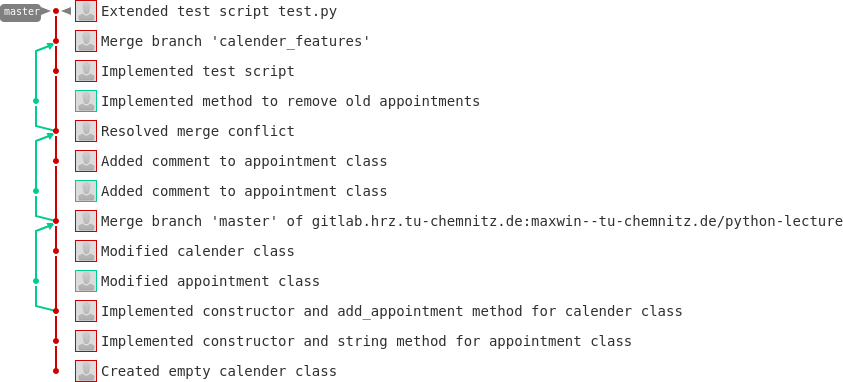
Here we can see both the branches that were created through simultaneous work on the master branch and our manually created calender_features branch.
Git Cheatsheet (compact)
| Command | Meaning / Tip |
|---|---|
git init | Create a local repository |
git clone <url> | Download a repository from a remote |
git status | Show changes, branch, and commit status |
git add <file> | Stage a file for the next commit |
git commit -m "message" | Save changes |
git commit -am "message" | Add + commit changes in known files in one step |
git pull | Fetch changes from remote (always first!) |
git push | Upload your changes to the remote repository |
git branch | Show all branches |
git checkout <branch> | Switch to another branch |
git checkout -b <branch> | Create and switch to a new branch |
git merge <branch> | Merge another branch into the current one |
git log --oneline --graph | Show history compactly as a tree |
git remote -v | Show remote repository URLs |
git push --set-upstream origin <branch> | Link a new local branch to remote |
git push --delete origin <branch> | Delete a remote branch |
Tip for teams:
Always run
git pullbefore pushing to avoid conflicts.Use separate branches for new features and merge when finished.
Resolve conflicts early and manually, not by overwriting.
Create an SSH key once to enable passwordless push/pull.
What belongs in a repository?
A Git repository should generally only contain source code and important project files. Files that are automatically generated or easily reproducible usually do not belong in a repository.
Typically included:
Source code (e.g.
.py,.c,.cpp)Configuration files
Documentation (
.md,.tex)Scripts and build files
Small example data
Files that should not be versioned:
Compiled programs (
.exe,.out,.class)Automatically generated files (
.log,.aux,.toc)Generated PDFs from LaTeX
Python cache files (
__pycache__/,.pyc)Temporary files or editor backups
Large datasets
Such files are usually listed in a .gitignore file. Git ignores all files specified there and does not include them in commits.
A simple example of a .gitignore file for a Python project:
__pycache__/
*.pyc
*.log
*.aux
*.toc
*.out
*.pdf
This file is stored in the root of the repository and is also versioned so that all developers use the same rules.